A question came up in a Copilot workshop recently that I hear in some form on almost every engagement. Someone had been away for a week or two or even 3 months, came back to seventy unread emails, and wanted to know whether Copilot could tell them which ones actually mattered.
The actual numbers here are not important. The underlying need is: can Copilot in Outlook help you prioritise important messages, filter out the noise, categorise what is left, surface the actions hiding in the pile, and get through a backlog without reading every message twice.
The short answer is yes, with two conditions. You need the right licence, and you need to give Copilot a little instruction about how you work. This post covers both, then walks through a routine you can use the next time you come back from leave.
The quick answer
Copilot in Outlook can prioritise your inbox by marking messages high, normal or low priority with a reason, summarise long threads in one click, draft and coach replies, and answer questions about your mail through Copilot Chat. Most of that capability requires a paid Microsoft 365 Copilot licence rather than the Copilot Chat experience included in standard Microsoft 365 subscriptions.
Licensing: what you need before any of this works
This is where most of the confusion sits, so let’s deal with it first.
There are three Copilot offerings that people commonly encounter in Outlook, and they are not the same thing.
Microsoft 365 Copilot Chat is included with eligible Microsoft 365 business and enterprise subscriptions at no additional cost. Since 2025 Microsoft has positioned Copilot Chat as the entry-level AI experience for work. In Outlook it provides a chat experience that can help with drafting, summarising content, and answering questions about the message you have open. However, it does not provide the same Microsoft Graph-grounded experience across your mailbox, calendar, meetings, chats and documents that comes with a Microsoft 365 Copilot licence.
Microsoft 365 Copilot is the paid add-on licence (Copilot Business for organisations with up to 300 users, Copilot for Microsoft 365 for larger organisations, and included in some Microsoft 365 E7 offerings). This licence unlocks the full Outlook Copilot experience, including advanced email triage capabilities, thread summarisation, drafting assistance, and Copilot Chat grounded in your Microsoft 365 data, including email, calendar, meetings, chats and documents.
Copilot Pro is the consumer subscription designed for personal Microsoft accounts. It does not apply to work mailboxes and will not enable the Microsoft 365 Copilot features covered in this article within a corporate tenant.
Three practical notes from tenant rollouts:
- Features arrive in tenants on a rolling basis. Having the licence does not guarantee every control is visible on the day it is assigned. If a feature is missing, check the Microsoft 365 roadmap and Message Center before assuming it has been disabled.
- The richest experience is in the new Outlook for Windows and Outlook on the web. Classic Outlook and mobile have caught up on most of it, but if something is missing, try the new Outlook first.
- Prioritise my inbox is opt-in per user. Nobody gets it until they switch it on.
If you are reading this without a Microsoft 365 Copilot licence, the honest position is that Outlook’s built-in tools (Focused Inbox, rules, categories, Sweep) remain your main levers, and Copilot Chat can help you draft. The triage capability that answers the seventy-emails question is a paid feature.
Five inbox jobs Copilot can do, and how to set each one up

1. Prioritise important emails
The feature you want is Prioritise my inbox. Copilot reviews each message as it arrives and assigns high, normal or low priority, with a one-line reason shown at the top of the message. It weighs who sent it, your relationship with them, whether it relates to something you are working on, and whether there is an action in it.
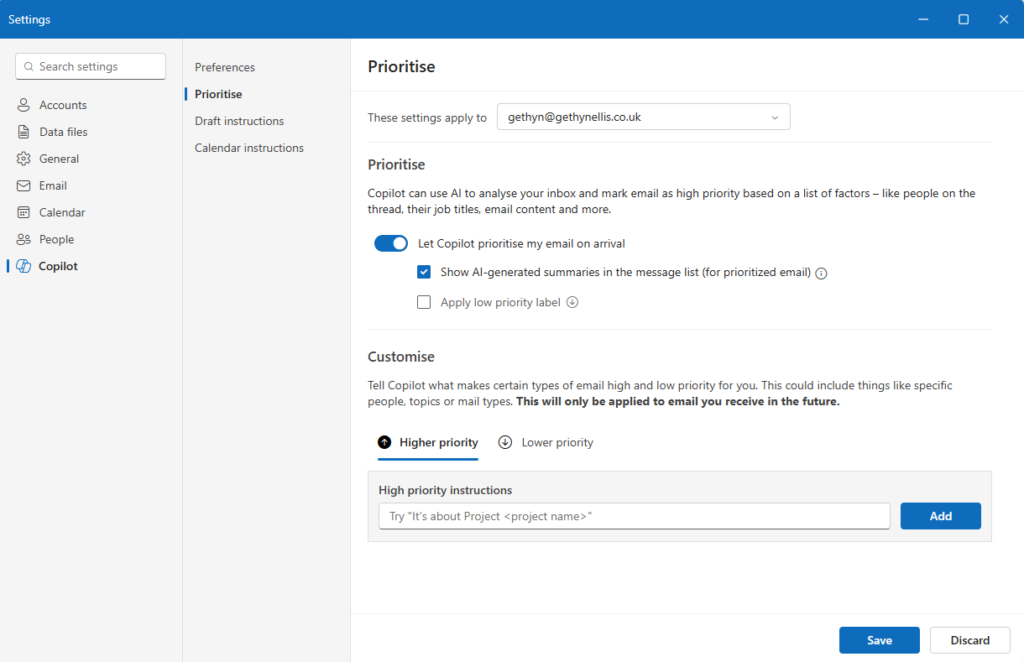
To switch it on in the new Outlook: View, then View settings, then Copilot, then Prioritize. Tick the option to let Copilot prioritise your emails. Choose whether you want AI summaries or the first two lines of the message shown in the list.
The part most people miss is the instruction box. You can tell Copilot what high priority means for you in plain English. For example:
Treat anything from my line manager, the finance director, or the client project mailbox as high priority. Treat internal newsletters, automated notifications, and calendar acceptances as low priority. Anything containing a deadline within the next five working days is high priority.
That instruction does more for accuracy than anything else. Write it once and revise it if you notice mistakes.
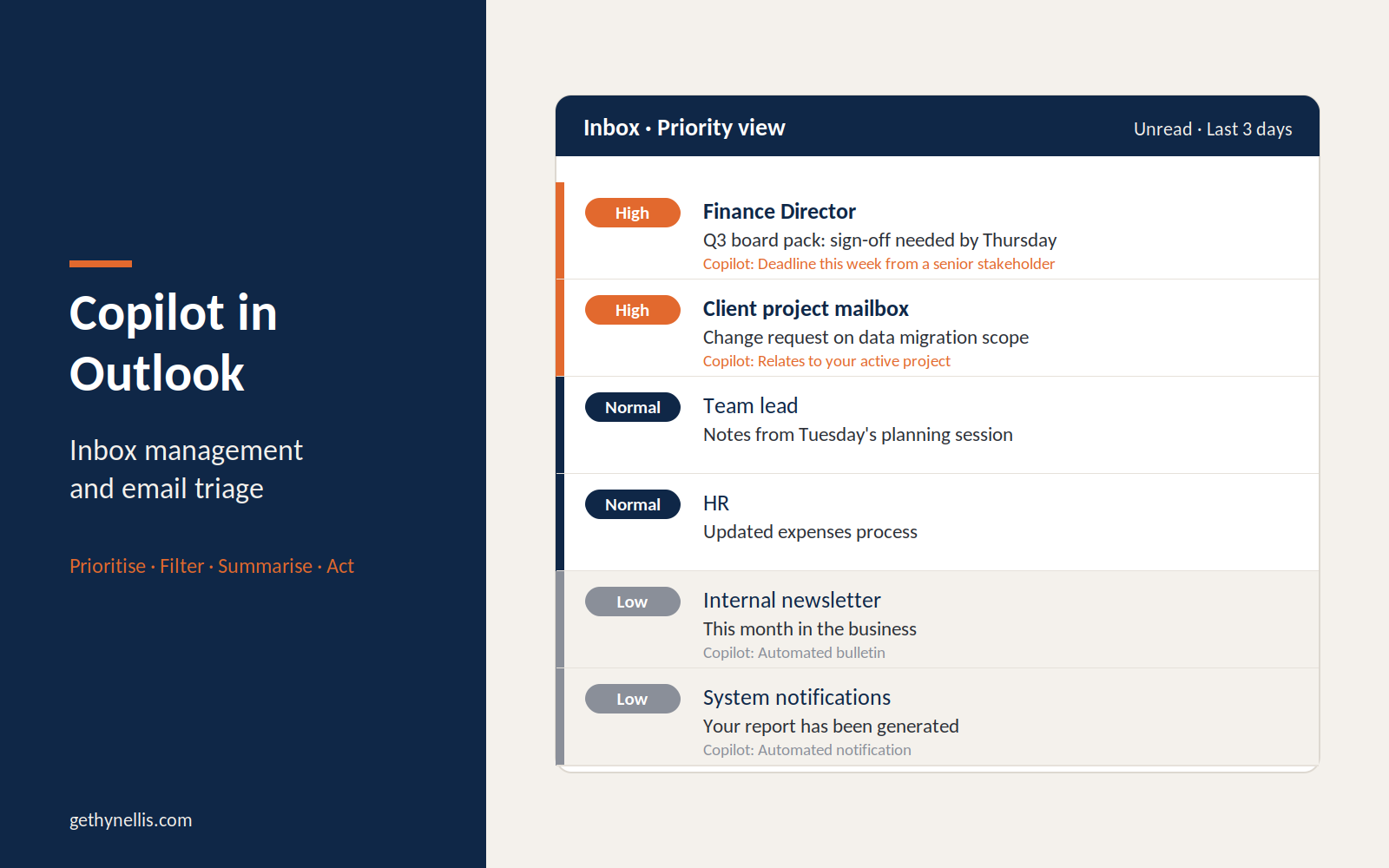
Once enabled, you can also turn on the Priority view (Settings, Copilot, Prioritize, Priority view). It shows one to three days of mail filtered to what Copilot thinks matters, with an option to show only unread. This is the view to open first thing in the morning or first thing after leave.
2. Filter out low-value and non-actionable messages
Prioritise my inbox can mark low priority messages as well as high, if you turn that option on. Combined with a sort or filter by priority, that gives you a fast way to push notifications, newsletters and courtesy replies to the bottom.
Two things to understand about how this works. First, Copilot does not move, file or delete anything. It adds a priority marker and a reason. Your inbox structure is untouched, which is the right design decision for a feature that is occasionally wrong. Second, Focused Inbox keeps running underneath it. The two are complementary: Focused Inbox is a coarse sender-based split; Copilot priority is a finer content-aware ranking.
For the genuinely repetitive noise, keep using rules and Sweep. A rule that files automated system alerts into a folder is faster and more reliable than any AI ranking, and it means Copilot spends its effort on messages a human actually wrote.
3. Categorise emails by relevance
Copilot does not currently apply Outlook categories automatically. What it does well is answer questions across your mailbox through Copilot Chat, so you can build your own categorisation on the fly.
Open Copilot Chat (in Outlook or the Microsoft 365 Copilot app) and ask something like:
Group the emails I received in the last seven days into: requests needing a reply from me, information only, and meeting logistics. List sender, subject and a one-line summary under each group.
You get a structured view in seconds, and you can then apply categories or flags manually to the ones that need tracking. If you want the categories to persist, pair the Copilot output with a rule for the patterns that repeat.
4. Surface actionable items
This is where the paid licence earns its value. Two approaches:
Within a thread, the Summarise button at the top of a conversation gives you the key points and who said what, with citations back to the individual messages. On a twenty-message thread this is the difference between reading for ten minutes and reading for one.
Across the inbox, ask Copilot Chat directly:
What actions have I been asked to take in emails from the last week? For each one give me the sender, what they need, and any deadline mentioned.
Cross-check the output. In my experience the recall is good but not perfect, and it will occasionally treat a soft suggestion as a firm request. Treat it as a first pass that you confirm, not a task list you trust blindly.
When you reply, Copilot in the compose pane can draft from a short instruction, and Coaching by Copilot will review your draft for tone and clarity before you send. For a backlog of replies that is a genuine time saver.
5. Clear a backlog after leave
Here is the routine I recommend for the return-from-leave scenario. It takes about fifteen minutes on a normal inbox.
- Open the Priority view set to three days and unread only. Deal with the high priority messages first.
- In Copilot Chat, ask: “Summarise the emails I received while I was out of office between [date] and [date]. Group by sender and highlight anything that needs a reply or has a deadline.”
- For each long thread that surfaced, hit Summarise rather than reading the whole conversation.
- Ask Copilot Chat: “Which of these has already been resolved by someone else in the thread?” This alone removes a surprising proportion of the pile.
- Sort the remaining inbox by priority, low priority to the bottom, and use Sweep on anything automated.
- Draft the replies you owe using Copilot in the compose pane, then send.
Set the out-of-office message to tell people you will be triaging on your return and that urgent items should be flagged as such. It improves Copilot’s signal as well as everyone else’s.
Considerations before you roll this out to a team
I deliberately call these considerations rather than limitations. None of them stop the feature being useful; they shape how you introduce it.
- Main inbox only. Prioritise my inbox works on the primary inbox, not shared mailboxes or subfolders. Teams that live in shared mailboxes need a different approach.
- Opt-in, per user. Adoption will not happen by assigning licences. Someone has to show people the setting and, more importantly, how to write the instruction.
- Language and rollout timing vary. English arrived first and other languages have followed. Check what your tenant actually shows before writing the training material.
- It ranks; it does not act. Copilot marks priority and summarises. It does not file, forward, delete or reply on its own. That is a feature, and it should be stated plainly in any user guidance so expectations are right.
- Accuracy depends on instruction. Left with no instruction, Copilot infers from behaviour and takes time to calibrate. The instruction box is the lever; make it part of onboarding.
- Review AI output. Summaries and action lists are a first pass. Anything with a commercial or legal consequence gets read in full.
- Governance still applies. Copilot reads what the user can already read. If your mailbox permissions or shared mailbox delegation are untidy, Copilot will surface that rather than cause it. Sort the underlying access first.
The takeaway
Copilot in Outlook is good at the part of inbox management that is expensive for humans: reading everything and deciding what matters. It is not a replacement for rules, folders and Focused Inbox; it sits on top of them. Get the paid licence if triage is the use case, spend five minutes writing a priority instruction, and build a repeatable routine for catching up. That combination is what turns a licence into time back.
If you want the prompts above in a reusable, structured form, they follow the RTF and RISE frameworks from my prompt frameworks tool, and the book AI That Actually Works covers the wider pattern of building role-based prompt libraries for teams.
Where to go next
Inbox triage is usually the first place people feel Copilot paying back, and the first place a rollout stalls when nobody has shown the team how to configure it. That gap between licences deployed and value realised is exactly what my AI Enablement Programme is built to close, with role-based use cases, a defined quality bar, and the governance to make the gains stick. Have a look at how the AI Enablement Programme works, or start with the free AI Readiness Assessment to see where your organisation stands today.
Frequently asked questions
Does Copilot in Outlook need a paid licence?
For inbox prioritisation, thread summaries and grounded chat across your mailbox, yes: a Microsoft 365 Copilot licence (Business, Enterprise add-on, or included in E7). Copilot Chat, which is included with Microsoft 365, offers a lighter chat experience in Outlook but not the triage features.
Does Copilot move or delete emails automatically?
No. Prioritise my inbox adds a priority marker and a reason to each message. It does not file, forward, delete or reply on its own. Rules, Sweep and Focused Inbox remain the tools for automatic filing.
How is Prioritise my inbox different from Focused Inbox?
Focused Inbox splits mail into two tabs based mainly on sender patterns. Prioritise my inbox uses Copilot to rank messages high, normal or low using content, relationships and context, and lets you write plain-English instructions to shape the ranking. The two run together.
Can Copilot summarise all the emails I missed while on leave?
Yes, with a Microsoft 365 Copilot licence. Ask Copilot Chat to summarise mail received between two dates, grouped by sender, and to highlight replies owed and deadlines. Use the thread Summarise button for long conversations.
PakarPBN
A Private Blog Network (PBN) is a collection of websites that are controlled by a single individual or organization and used primarily to build backlinks to a “money site” in order to influence its ranking in search engines such as Google. The core idea behind a PBN is based on the importance of backlinks in Google’s ranking algorithm. Since Google views backlinks as signals of authority and trust, some website owners attempt to artificially create these signals through a controlled network of sites.
In a typical PBN setup, the owner acquires expired or aged domains that already have existing authority, backlinks, and history. These domains are rebuilt with new content and hosted separately, often using different IP addresses, hosting providers, themes, and ownership details to make them appear unrelated. Within the content published on these sites, links are strategically placed that point to the main website the owner wants to rank higher. By doing this, the owner attempts to pass link equity (also known as “link juice”) from the PBN sites to the target website.
The purpose of a PBN is to give the impression that the target website is naturally earning links from multiple independent sources. If done effectively, this can temporarily improve keyword rankings, increase organic visibility, and drive more traffic from search results.